Addition of IAM user
Adding an IAM user
Introduction
This document provides step-by-step instructions to add an IAM user over TA admin portal
- Login to the TA admin portal https://admin.threatcop.com/login using your login credentials
- Navigate to Directory > IAM (Directory)
3. Click on Add User > Invite New user
4. Enter the user details, select the role & click on Send Email.
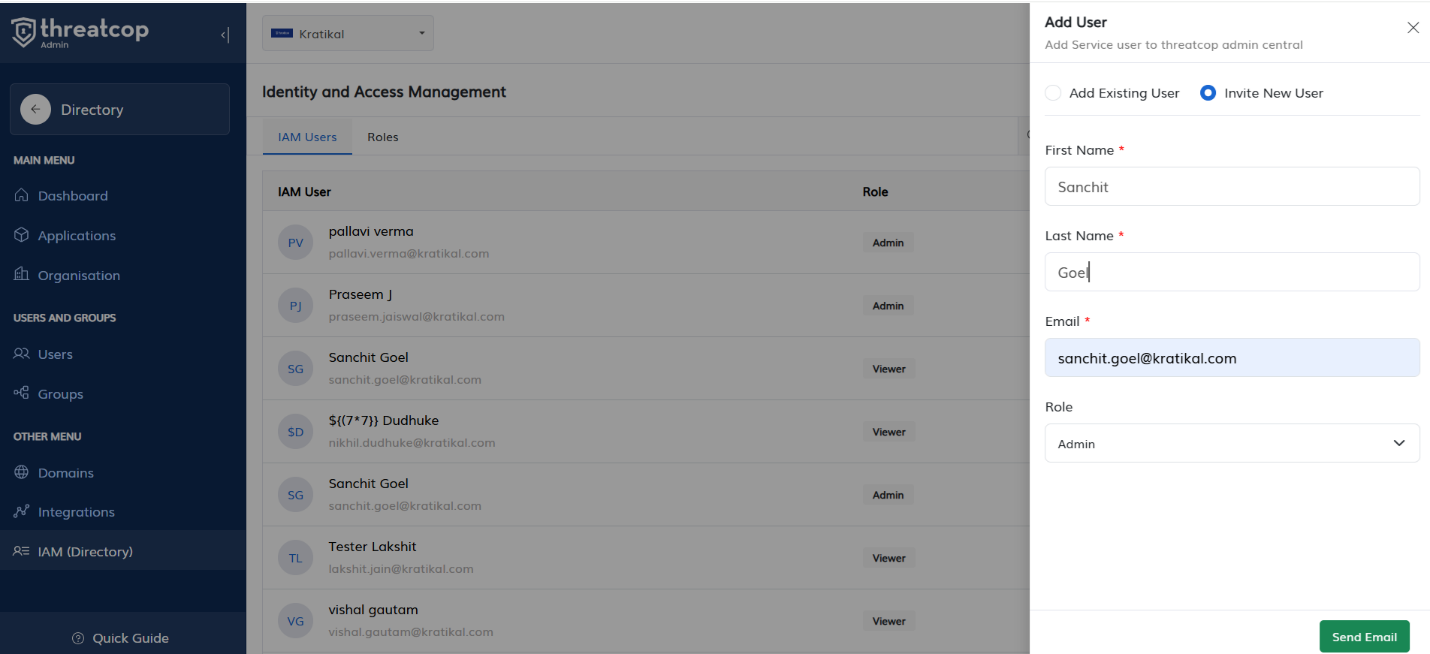
Note: Please ensure your domain is added & verified before creating an IAM user
5. To assign the application navigate to Directory > Applications
6. Click on the Manage for the application you want to assign to the user.
7. Click on IAM Application.
8. Click on Assign User.
Note: The user name will not be displayed in drop down menu of Select IAM user unless the user activates his admin account portal account
9. Click on Assign.
Note: Similarly, you can assign the other applications to the user
Related Articles
Addition of Domain
Addition of Domain over TA Admin portal Introduction This document provides step-by-step instructions to add domain over TA admin portal Login to the TA admin portal https://admin.threatcop.com/login using your login credentials Navigate to Directory ...Integrate Microsoft Azure with Threatcop Admin
Integrate Microsoft Azure with Threatcop Admin Note: To perform the integration, global admin access is required for Azure Portal Direct Method : 1. Log in to Threatcop Admin Panel Use your region-specific login: India: ...Adding Users To TA
Adding Users to the TA Portal Introduction This document provides step-by-step instructions on how to add users to the admin portal and sync them to different applications. Part 1: Adding Users to the Portal Log in to the Admin Portal. From the Other ...