Creating a Phishing Simulation Rule in the Microsoft Defender
In order to whitelist Threatcop into your O365 environment you need to follow the below mentioned steps:
- Go to https://www.microsoft365.com/
- Locate the square with dots positioned at the upper-left corner. Proceed to access the Security section available in the sidebar menu.
- Within the sidebar, navigate to the section labeled "Policies and Rules."
- Proceed to locate the section labeled "Threat Policies" and then proceed by clicking on it.
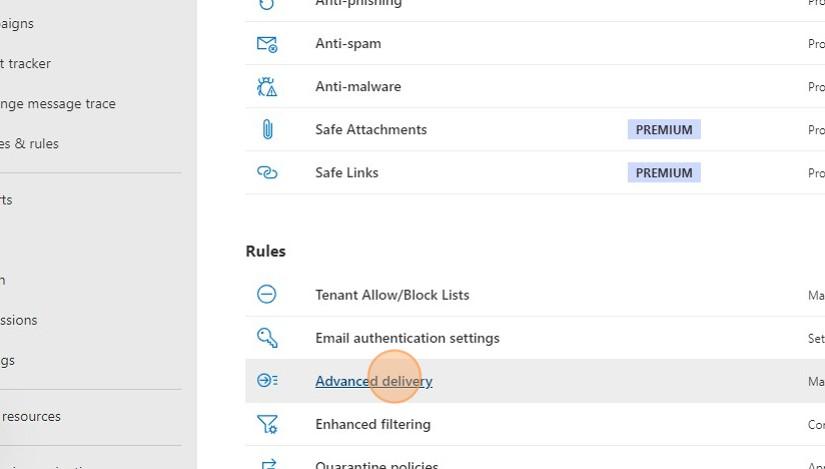
- While in the "Rules & Policies" tab, locate the subsection titled "Rules." Within this subsection, proceed to find and select "Advanced Delivery."
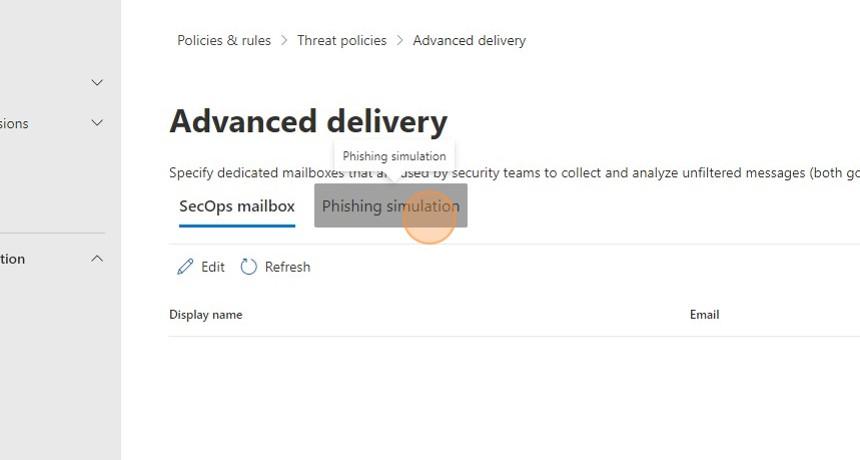
- Within the "Advanced Delivery" section, you will encounter two distinct sections, namely "SecOps Mailbox" and "Phishing Simulations." Please navigate to the "Phishing Simulations" section.
- Creating a Phishing Simulation Rule in the O365 Admin Center.
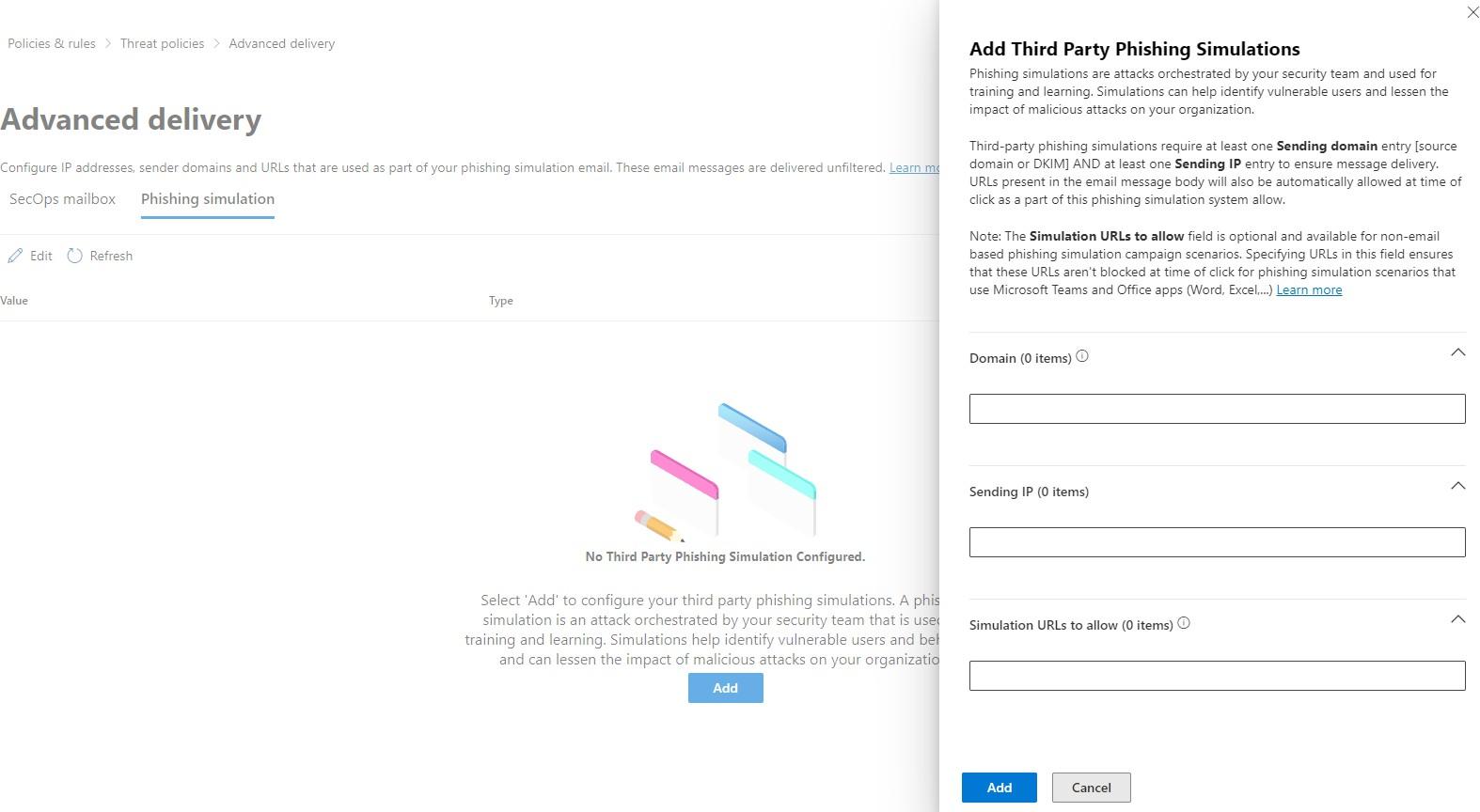
- Upon clicking the "Add" button, you will be presented with three distinct sections, which are Domain, Sender IP, and Simulation URLs, as outlined below.
- Kindly enter the below details into the three sections accordingly
- Domain: Domain/URL/Sender ID (depending on the simulation template). (Contact your SPOC incase you are not able to find it)
- Sending IP: 202.22.164.131 , 16.113.17.40
- Simulation URLs: Domain/URL (depending on the simulation template).
- Once you have filled in the aforementioned details, proceed to click the "Add" button, thereby finalizing the process of whitelisting within the Office 365 environment.