Integrating SSO with Threatcop Admin for IAM users
- Log in to the portal using your credentials.
- From the left-hand navigation menu, click on “Directory” (located under the “Other” section).
- Click on “Integrations”, also located under the “Other” section.
- In the SSO section, click on “Integrate”.
- On the top-right corner (just below the user profile), click on “Add IDP”.
- The required SSO configuration details will now be visible.
7. Login into Azure portal and create a Enterprise application using the search bar
8. Create a new application using the "+ New application" button
9. Create your own application , give it a name and set the "non gallery" option for it and create
10. From the Overview section select "Set up Single Sign On" and SAML based
11. Fill the Entity ID and Reply URL for the Enterprise Application which you will find in Threatcop Admin > Directory > SSO Configuration
12. Copy the login URL from section 4 (Set up threatcop admin SSO) and download the certificates from 3(SAML Certificate) section
you can download the base 64 type
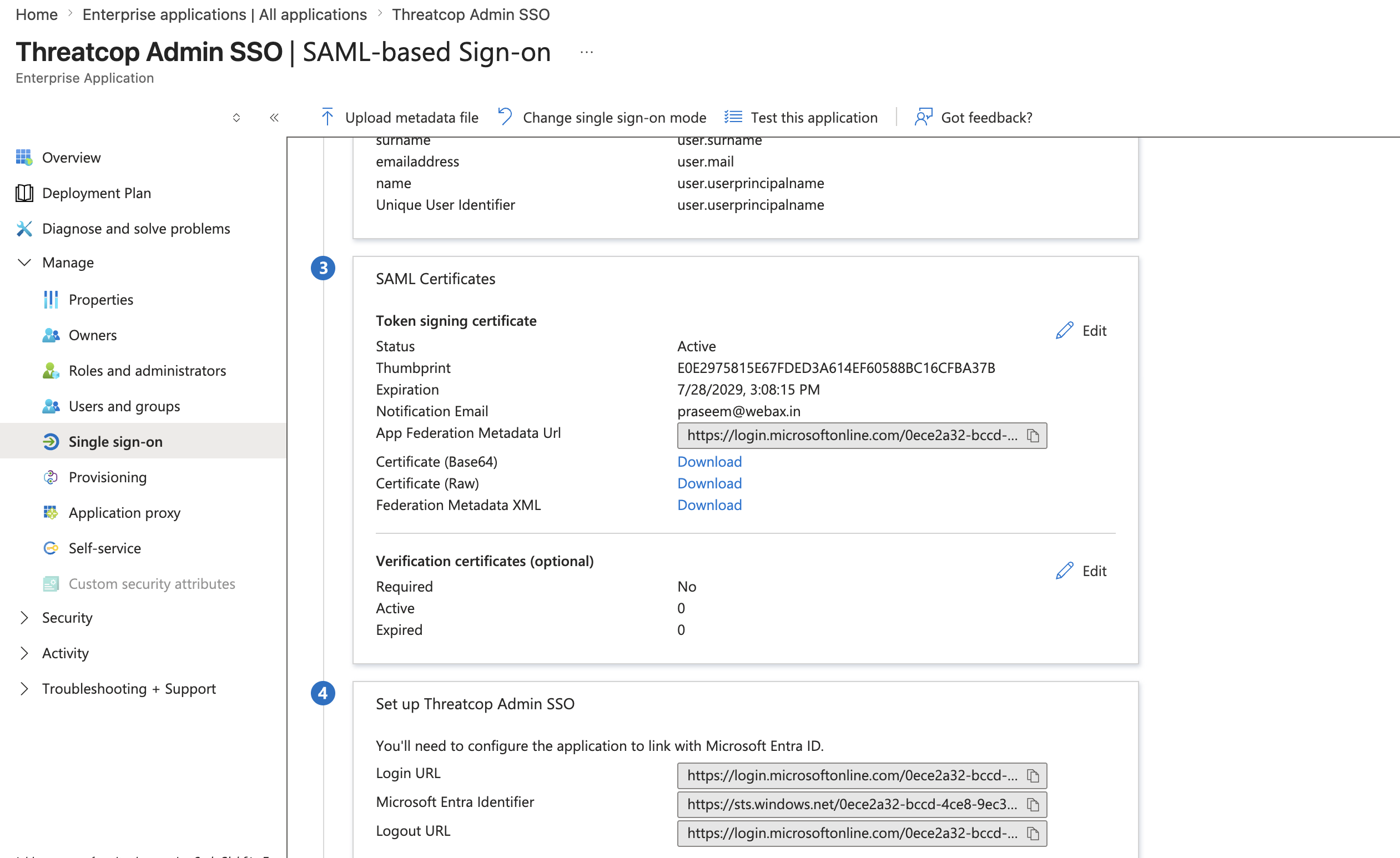
you can download the base 64 type
Note : from the users and group section please assign the users with this application
13. The login URL will then be pasted in the Entry point URL in Threatcop portal and base 64 certificate will be uploaded in Upload certificate section
Also you can name any thing you want in IDP name section
14. Click on the Add IDP button to add.
15. To validate this any Admin access IAM should Log out and try to log in again using the SSO option on there Threatcop admin Login page