Migrating to the New Threatcop SMTP Servers: Whitelisting and Custom SMTP Setup
Overview
Threatcop is moving phishing simulation delivery to a new SMTP infrastructure. To keep simulation emails reaching your users’ inboxes, and to make sure clicks are tracked correctly, your email security team needs to whitelist the new sending IPs and the domains used in your templates.
This article covers:
1. The new SMTP IP addresses to whitelist
2. The domains to whitelist (sender domain and landing page URL)
3. How to configure custom SMTP credentials in the Attacker Profile while creating a template
Step 1: Whitelist the New SMTP IP Addresses
Add the following IP addresses to your email security allow list:
#
New SMTP IP Address
1
16.113.17.40
2
202.22.164.131
Important links Threatcop IP to be whitelisting
Where you add them depends on your email environment. Common places include:
• Microsoft 365 Defender: Advanced Delivery → Phishing Simulation
• Google Workspace: Gmail → Spam, Phishing and Malware → Email allow-list
• McAfee: Control Console > Email Protection > Policies
• Third-party secure email gateways: For Example, Proofpoint, Mimecast, Thunderbird, Barracuda
Step 2: Whitelist the Sender Domain and Landing Page URL
Whitelisting the IPs alone is not enough. Two domains used in every simulation template must also be allowed:
1. Sender domain: the domain in the “From” address that recipients see (for example, HR@hrhelp.co.in).
2. Landing page URL domain: the domain users are taken to when they click the link in the simulation email
If the landing page domain is not whitelisted, URL scanners such as Microsoft Safe Links, Zscaler, or your gateway’s link protection may block the page or register false clicks. If the sender domain is not whitelisted, the email may be quarantined or sent to junk.
Tip: In Microsoft 365 Advanced Delivery, add the sender domain under Domains and the landing page URL under Simulation URLs to allow.
Step 3: Configure the Template with Custom SMTP Credentials
When you create a template then you will need to select Landing Page Url and set domain in the attacker profile.
3.1 Select the Landing Page URL
At the Landing Page stage, choose the landing page domain from the Landing Page Url dropdown. This is the domain you whitelisted in Step 2.
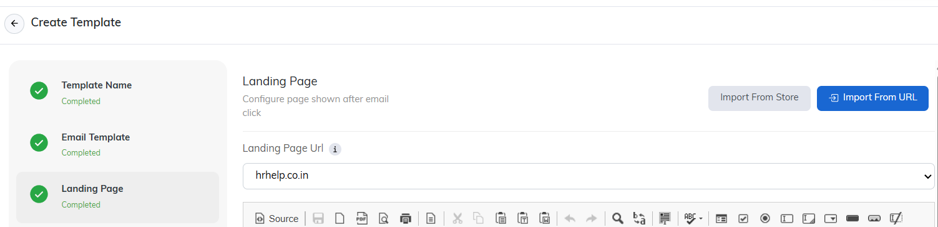
Figure 1: Landing Page stage with the Landing Page Url set to hrhelp.co.in
You can build the page in the editor, or use Import from Store or Import from URL to load an existing page.
3.2 Set Up the Attacker Profile with Custom SMTP
At the Attacker Profile stage, fill the sender’s name and select sender domain. After setting the template, we will be adding our custom SMTP details from our end.
Figure 2: Attacker Profile stage with Sender Display Name, Sender Domain, and Custom SMTP fields
Sender Display Name
• Sender Name: the name shown in the recipient’s inbox (for example, HR). If you leave it empty, the sender’s email address is shown instead.
Sender Domain
• Enter Sender Name: the local part of the sender email address.
• Select Domain: the sender domain from the dropdown (for example, hrhelp.co.in). Together these form the “From” address, HR@hrhelp.co.in. This domain must be the one whitelisted in Step 2.
Custom SMTP
Turn on the Custom toggle to send through your own SMTP credentials, then fill in:
• Host: SMTP server address will be provided by Threatcop
• Username: the SMTP authentication username will be provided by Threatcop
• Password: the SMTP authentication password will be provided by Threatcop
Hover over the ⓘ icon next to each field for more guidance.
3.3 Preview and Save
Continue to the Preview stage, confirm all the details, and save the template.
Step 4: Test Before Launching
Before running a full campaign, send a test campaign to a small group of internal users and check the following:
• The email lands in the inbox, not in junk or quarantine.
• The sender’s name and address appear as configured.
• The landing page opens without a security warning or block page.
• Clicks appear in the TSAT campaign report and are not flagged as automated scanner activity.
Frequently Asked Questions
Do I need to whitelist both IPs?
Yes. Emails may be sent from either IP address, so both must be allowed.
I’ve whitelisted the IPs, but emails still go to junk. What should I check?
Make sure the sender domain is also whitelisted and that the Custom SMTP credentials in the Attacker Profile are correct.
Users see a warning or block page when they click the link.
The landing page URL domain is probably not whitelisted in your URL filtering, proxy, or Safe Links policy. Add it and test again.
Do I need to update existing templates?
If your existing templates use custom SMTP, check that the Attacker Profile credentials point to the correct server after the migration.